
Attackers can hide many things, but almost everything they do leaves a line in a log somewhere. Knowing where to look is half of a SOC analyst's job.
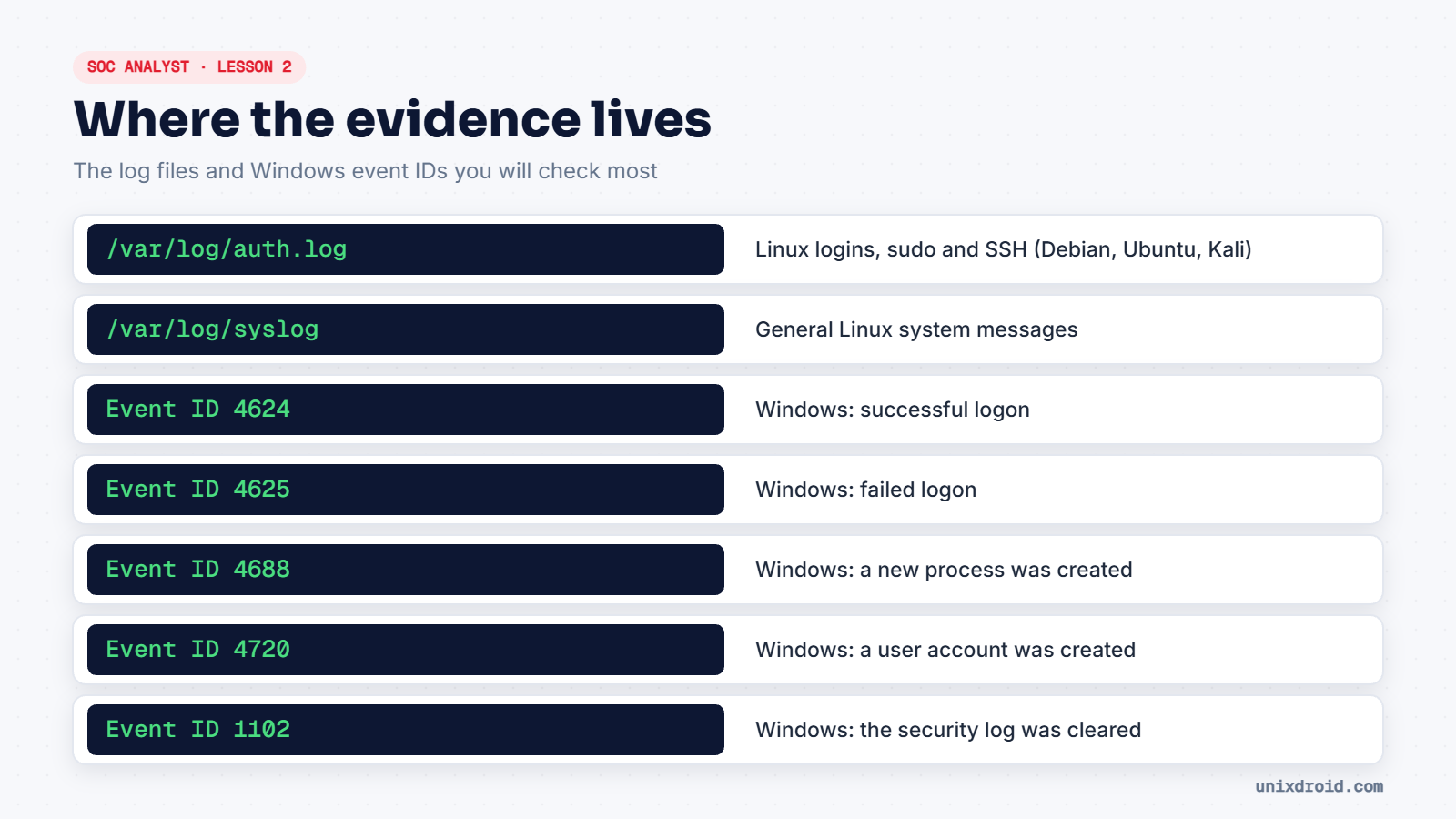
Linux logs
On Debian-based systems (Ubuntu, Kali), the classic files live in /var/log/:
| File | What it records |
|---|---|
/var/log/auth.log | Logins, SSH, sudo use |
/var/log/syslog | General system messages |
/var/log/apache2/access.log | Every request to an Apache web server |
Newer systems, including recent Kali releases, may not create auth.log at all, because they log to the systemd journal instead. You read it with journalctl:
sudo journalctl -u ssh            # only the SSH service
sudo journalctl --since "1 hour ago"
sudo journalctl _COMM=sudo        # only sudo messages
Reading one line
Here's a typical failed SSH login:
Nov 19 10:42:11 lab sshd[1432]: Failed password for root from 203.0.113.45 port 51234 ssh2| Part | Meaning |
|---|---|
Nov 19 10:42:11 | When it happened |
lab | Which machine logged it |
sshd[1432] | The program and its process ID |
Failed password for root | What happened, and to which account |
from 203.0.113.45 | Where the attempt came from |
Windows logs
Open Event Viewer → Windows Logs → Security. Every event has an ID number, and a handful of them come up constantly:
| Event ID | Meaning | Why you care |
|---|---|---|
| 4624 | Successful logon | Who got in, and how |
| 4625 | Failed logon | Many in a row = password guessing |
| 4688 | New process created | What ran on the machine |
| 4720 | User account created | Attackers love new accounts |
| 1102 | Security log cleared | Almost always suspicious |
Inside a 4624 event, check the Logon Type: 2 is someone at the keyboard, 3 is over the network, and 10 is Remote Desktop.
If you ever see event 1102 and nobody can explain it, treat it as an incident. Someone wanted the history gone.