
You're in the college library, an office cubicle or a café. You open your laptop, the Kali dragon wallpaper lights up, a terminal opens... and within two minutes the person next to you is staring at your screen.
There's also something you can't see: in the Wi-Fi router's admin panel, your laptop shows up with the name "kali". For a college or office IT team, there's no bigger red flag than that.
This post covers 5 settings to turn on before you open Kali Linux on a public or shared network. #5 is the most useful, and most people have never heard of it.
First, let's be clear: using Kali Linux is not illegal. But scanning, sniffing or attacking a college or office network without written permission is illegal (in India, under Sections 43 and 66 of the IT Act, 2000) and breaks your college or company policy too. These settings aren't for "hacking secretly". They keep your laptop safe and low-profile on networks you don't control.
#1 Turn on Undercover Mode (so people stop staring)
Kali has a built-in Undercover Mode that makes your whole desktop look like Windows in one click: taskbar, start menu, icons and wallpaper. Want Kali back? Run the same command again.
kali-undercoverOr search the menu for "Kali Undercover Mode". It only changes the look. Your tools and files stay exactly where they are. Full guide: Kali Undercover Mode explained.
#2 Auto screen lock + a strong password
Got up to grab a coffee and left your laptop open? Anyone can type anything into your terminal or copy your files.
First, if you're still using a default or weak password, change it:
passwdThen turn on auto-lock. In newer Kali versions (Xfce): Settings → Xfce Screensaver → Lock Screen tab → Enable Lock Screen, and set it to lock after 2–5 minutes.
On older Kali versions, you'll find the lock options under Settings → Power Manager → Security.
Build this habit before you stand up: press Ctrl + Alt + L and the screen locks instantly.
#3 Turn on the firewall (ufw)
On public Wi-Fi, every other device can reach your laptop. A simple firewall rule fixes most of that: block everything coming in, allow everything going out.
ufw isn't installed on Kali by default, so install it first:
sudo apt update && sudo apt install ufw -y
sudo ufw default deny incoming
sudo ufw default allow outgoing
sudo ufw enable
sudo ufw status verbose
Browsing, updates and everything else keeps working normally, because outgoing traffic is allowed.
Lab tip: if you need a listener for a reverse shell in your own lab (like nc -lvnp 4444), open only that port, and close it when you're done:
sudo ufw allow 4444/tcp
sudo ufw delete allow 4444/tcp
#4 Shut down services you don't need (SSH, Apache, Postgres)
Kali keeps network services disabled by default. The problem is that during practice you probably started SSH, Apache or PostgreSQL (for Metasploit) and forgot about them. Now they're open to everyone on the college Wi-Fi.
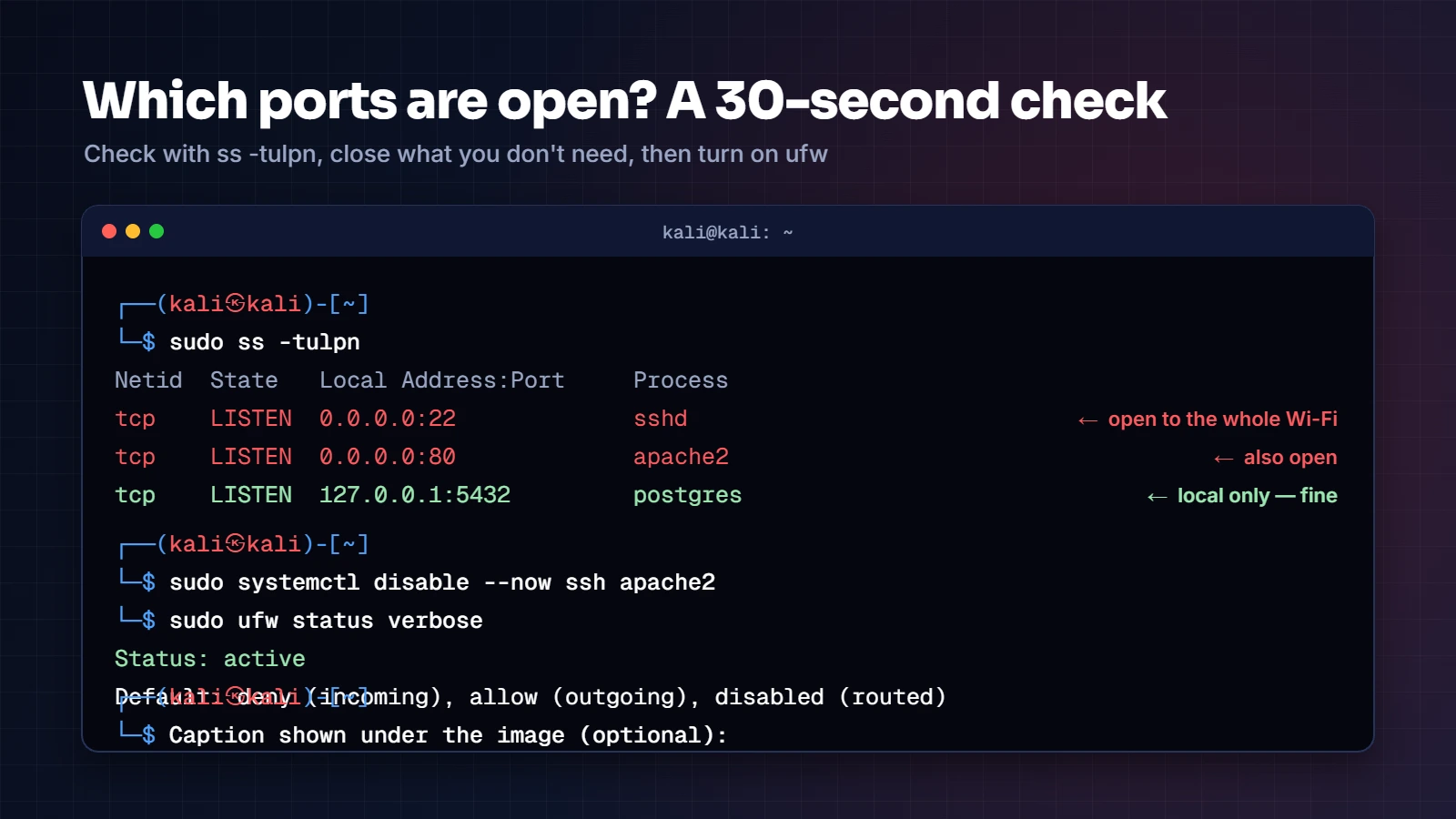
Check which ports are listening:
sudo ss -tulpnAny LISTEN line on 0.0.0.0 or [::] is open to the whole network. Lines on 127.0.0.1 are only reachable from inside your laptop, and those are fine.
Stop anything you don't need, and keep it from starting at boot:
sudo systemctl disable --now ssh apache2 postgresqlAlso check for a forgotten python3 -m http.server running in some terminal, and stop it with Ctrl + C. It shares that whole folder with the network.
#5 Change your hostname and MAC address (the most useful one)
This setting is the most useful of the five, and the one people skip the most.
When you connect to a Wi-Fi network, your laptop sends the router its hostname (Kali's default hostname is kali). It also sends your MAC address, which is the same every time. That means:
- In the router's "Connected devices" list, you show up as kali.
- Because your MAC never changes, your device can be recognised every single day.
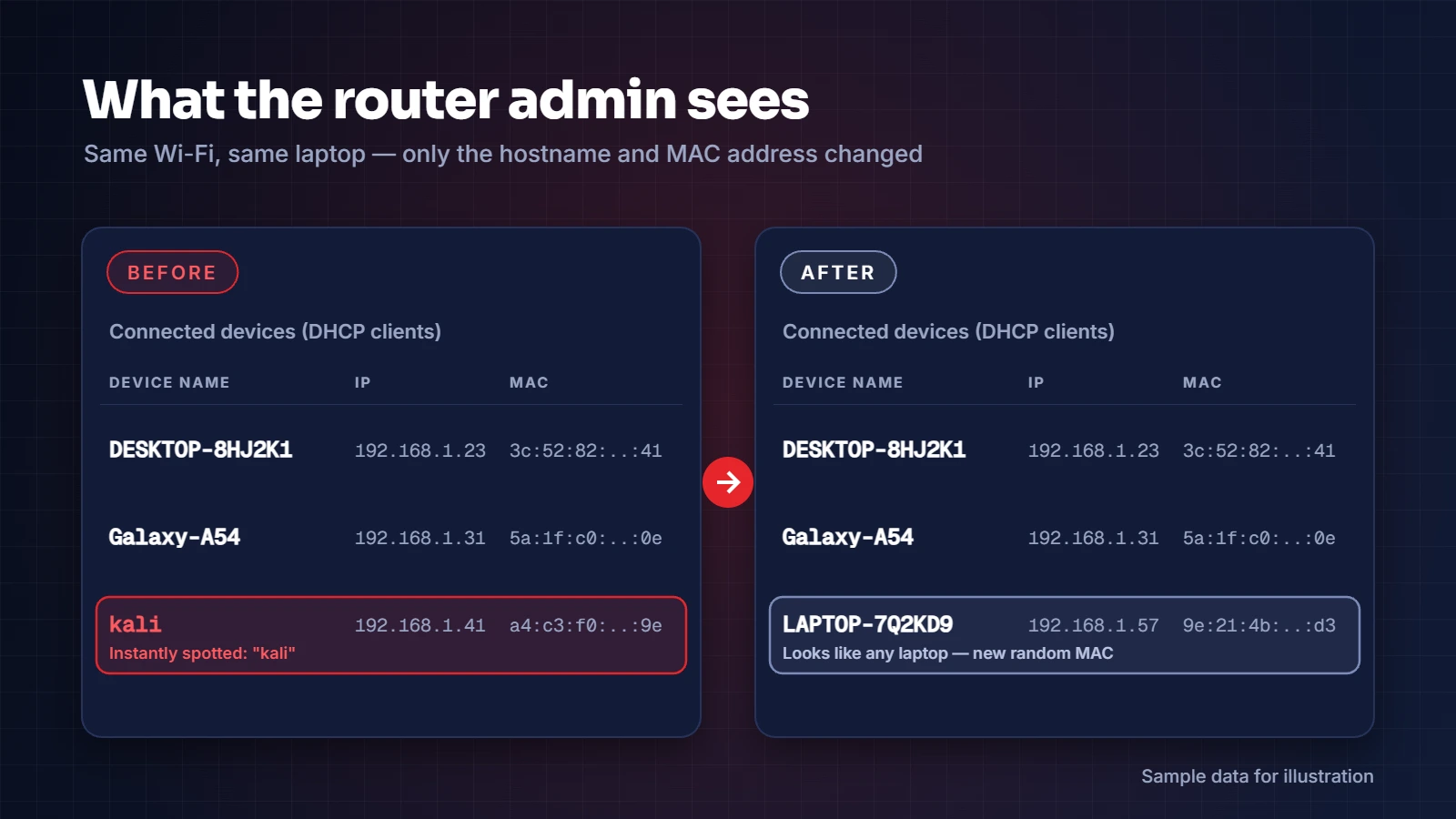
Step 1: Change the hostname
Check the current hostname, then give your laptop a normal-looking name:
hostnamectl
sudo hostnamectl set-hostname LAPTOP-7Q2KD9
Now update the old name in /etc/hosts too, otherwise sudo will keep showing a warning:
sudo nano /etc/hostsChange the line 127.0.1.1 kali to 127.0.1.1 LAPTOP-7Q2KD9 and save (Ctrl + O, Enter, Ctrl + X).
Step 2: Randomize your MAC address
Kali uses NetworkManager, which can do this automatically. Create a config file:
sudo nano /etc/NetworkManager/conf.d/99-mac-random.confPaste this in:
[device]
wifi.scan-rand-mac-address=yes

[connection]
wifi.cloned-mac-address=stable
ethernet.cloned-mac-address=random
Then restart NetworkManager and check that the MAC changed:
sudo systemctl restart NetworkManager
ip link
stable vs random, what's the difference?
stable: a different random MAC for each Wi-Fi network, which stays the same on that network. Best for college Wi-Fi, because the captive portal won't ask you to log in again and again.random: a brand-new MAC every time you connect. Good for cafés, airports and railway stations.
Need a quick, one-time change instead? Kali ships with macchanger (check your interface name with ip link):
sudo ip link set wlan0 down
sudo macchanger -r wlan0
sudo ip link set wlan0 up
Be careful: some college and office networks only give internet access to registered MAC addresses. Changing your MAC there can cut off your connection or break the network policy. On those networks, ask the IT team, or keep your real MAC for that network only:
nmcli connection modify "College-WiFi" wifi.cloned-mac-address permanentRunning Kali in a VM? Understand this
- NAT mode (the VirtualBox/VMware default): the network only sees your Windows laptop. Kali doesn't appear as a separate device, so the risk from #3–#5 is much lower.
- Bridged mode: Kali becomes its own device on the network, with its own hostname and MAC. If you use bridged mode on public Wi-Fi, definitely do #3, #4 and #5.
Setting up a fresh install? Read this next: You installed Kali Linux. Do these 5 things first.
Quick checklist (screenshot this)
| # | Setting | What it does | Command / where |
|---|---|---|---|
| 1 | Undercover Mode | Makes your desktop look like Windows | kali-undercover |
| 2 | Auto lock + password | Nobody can use your unattended laptop | Xfce Screensaver, passwd |
| 3 | Firewall | Blocks incoming connections | sudo ufw enable |
| 4 | Services off | SSH/Apache aren't left open on the network | sudo ss -tulpn |
| 5 | Hostname + MAC | You don't show up as "kali" on the router | hostnamectl, NetworkManager |
FAQs
Is it illegal to use Kali Linux on college Wi-Fi? Running Kali is not illegal. Scanning the network, sniffing traffic or attacking devices without permission is illegal and can also lead to disciplinary action from your college. Practice in your own lab or on TryHackMe and Hack The Box.
Does changing my MAC address make me anonymous? No. Your college Wi-Fi login, the captive portal and your browser accounts all still identify you. MAC randomization only reduces tracking. It doesn't make you invisible.
Does Undercover Mode remove Kali's tools? No. Only the theme changes. All your tools, files and settings stay the same.
Will changing the hostname break anything in Kali?
No, as long as you also update /etc/hosts. If you don't, sudo shows an "unable to resolve host" warning, and updating that file fixes it.
Do these settings apply to Windows or my phone too? The ideas are the same. Windows and Android both have a "random hardware address" or "private MAC" option, and you can rename the device as well.