
Picture this: you're in a college library, a café or a client's office with your laptop open. On your screen is a black Kali desktop, a giant dragon wallpaper and three terminals scrolling Nmap output. Within a minute, someone is looking over your shoulder and wondering what you're up to.
Kali Linux has a built-in fix for exactly this moment. It's called Kali Undercover Mode, and with one click your hacker desktop turns into something that looks like an ordinary Windows PC: Windows-style taskbar, start menu, icons and wallpaper. Click it again, and you're back to Kali.
In this post you'll learn where Undercover Mode came from, how to switch it on and off, what it actually changes (and what it doesn't), how to fix it when it won't start, and the new BackTrack mode added in 2026.
What is Kali Undercover Mode?
Kali Undercover is a small set of scripts that ships with Kali Linux. When you run it, it swaps your desktop's theme, wallpaper, icons and panel layout for a look that resembles a default Windows 10 desktop. The official Kali docs sum up the idea in four words: hide in plain sight.
It arrived in Kali Linux 2019.4, released on 26 November 2019. That was the same release that switched Kali's default desktop from GNOME to Xfce. According to the release post, the idea came from the head of Offensive Security's penetration-testing team, for people working in public who don't want the Kali dragon drawing attention to what they're doing.
Undercover Mode is a costume, not a cloak. It changes how your screen looks to people nearby. It doesn't hide anything from networks, scanners or forensic tools. More on that below.
Why would anyone need it?
It sounds like a joke feature at first, but there are real situations where it helps:
- On-site security assessments. Pentesters often work from a client's office, a reception area or a shared floor. A Windows-looking laptop gets no second glance; a Kali screen can make staff nervous and lead to awkward questions.
- Authorised physical or social-engineering tests. If the engagement involves blending in, a desktop that screams "hacker" breaks your cover.
- Studying in public. Students practising in a library, metro or café don't need strangers misreading their screen.
- Recordings and demos. Sometimes you just want a neutral-looking desktop for a presentation or a screen recording.
The key point: it's meant for people doing legitimate, authorised work who simply don't want attention. It doesn't make anything legal that wasn't already.
How to turn on Undercover Mode
There are two ways, and both do exactly the same thing.
Option 1: From the menu (the one-click way)
- Open the Kali application menu (top-left).
- Search for Kali Undercover Mode.
- Click it.
Within a couple of seconds your wallpaper, theme, icons and taskbar change to the Windows-style layout. Your open windows stay open; only the look changes.
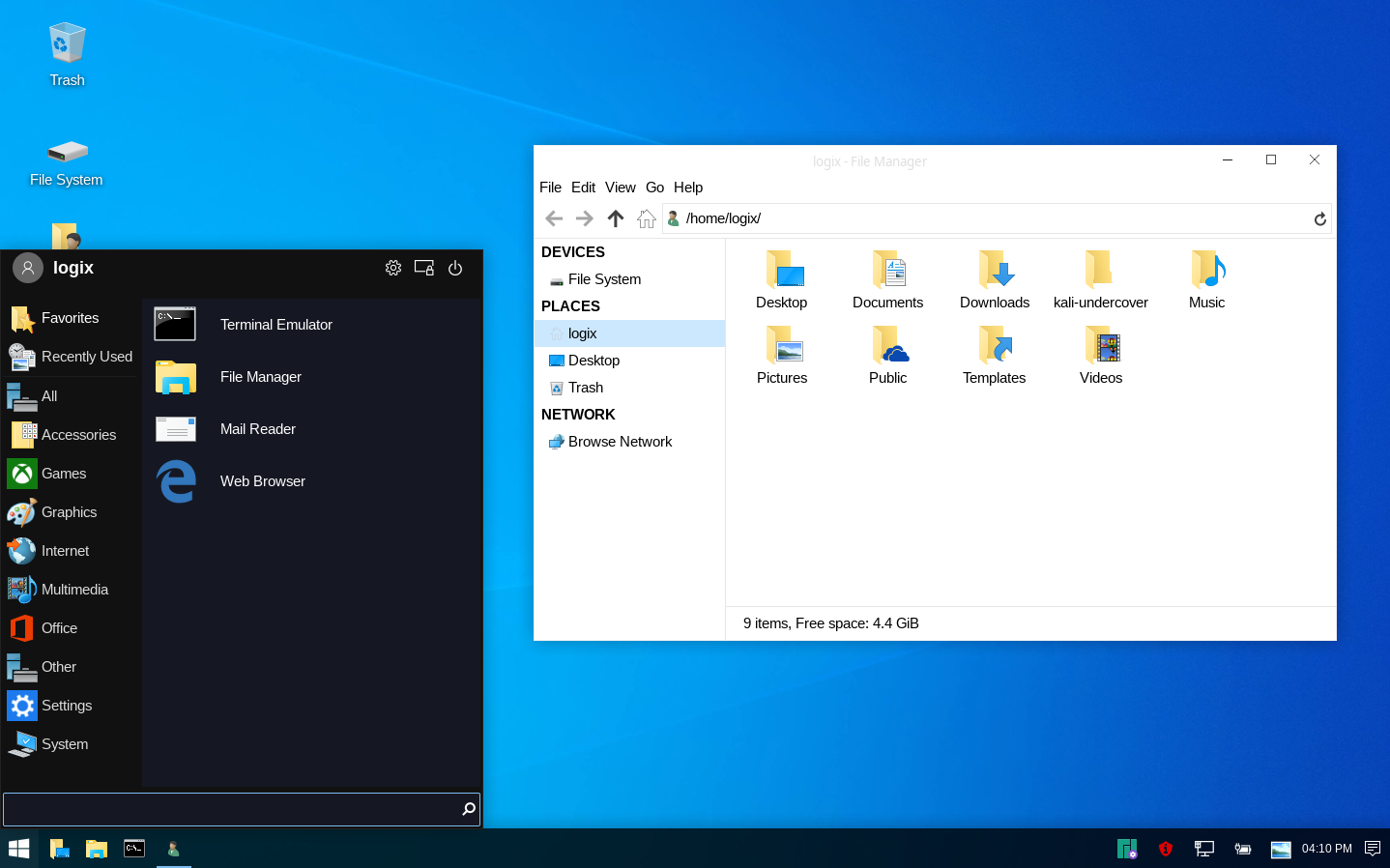
Kali in Undercover Mode: a Windows-style start menu, taskbar, icons and file manager. Notice the kali-undercover folder in the home directory, a small giveaway.
Option 2: From the terminal
kali-undercoverYou can close the terminal once the theme has switched.
How to switch back to normal Kali
Run the exact same thing again. The script is a toggle: it saves your previous desktop settings when it goes undercover and restores them when you run it a second time.
kali-undercover # run again to get your normal Kali desktop backOr click Kali Undercover Mode in the menu a second time.
New in 2026: BackTrack mode
Kali's predecessor, BackTrack Linux, turned 20 in 2026. To celebrate, Kali Linux 2026.1 (March 2026) added a second disguise to the same tool: a BackTrack mode that recreates the look of BackTrack 5, with its wallpaper, colours and window themes.
kali-undercover --backtrackRun it again to return to your normal Kali desktop. It's less "undercover" and more nostalgia, but it's a fun way to see what hacking distros looked like before Kali existed. You'll need Kali 2026.1 or newer, so update first if the option is missing:
sudo apt update && sudo apt full-upgrade -yWhat Undercover Mode changes (and what it doesn't)
This is the part most tutorials skip, and it's the most important thing to understand as a security learner.
What it changes: only the desktop's appearance. Theme, wallpaper, icons, and the taskbar and menu layout.
What it doesn't change:
- The operating system. It's still Kali, still Linux, with every tool exactly where it was.
- Your terminal prompt. Open a terminal and it still says
kali@kali(your username and hostname). That's a dead giveaway to anyone who looks closely. - Your hostname on the network. Wi-Fi routers and DHCP servers often list connected devices by name. A device called
kalion the office Wi-Fi isn't very undercover. - Your network fingerprint. Tools like Nmap identify an operating system from how it responds to packets, not from what its wallpaper looks like.
Try it yourself: prove it fools eyes, not scanners
Turn Undercover Mode on, then scan your Kali box from another machine or VM in your own lab:
sudo nmap -O 192.168.56.101Replace the IP with your Kali VM's address (find it with ip a). Nmap will still report a Linux operating system. Undercover Mode changes nothing at the network level. New to Nmap? Start with Nmap for Beginners.
There's an even simpler clue: ping your Kali machine from a Windows PC and look at the TTL value in the replies. Linux systems usually start at a TTL of 64 and Windows at 128. One number gives the whole disguise away.
Tip: On an authorised on-site job where you also want to blend in on the network, change your hostname to something boring before you connect, for example
sudo hostnamectl set-hostname DESKTOP-4F7K2Q. Update thekalientry in/etc/hoststo match sosudodoesn't complain, then reconnect. Change it back when you're done.
Undercover Mode not working? Quick fixes
1. Check your desktop environment. Undercover Mode is built for Xfce, Kali's default desktop since 2019.4. On GNOME or KDE it won't work properly. Check which one you're running:
echo $XDG_CURRENT_DESKTOPIf it doesn't say XFCE, install Xfce with sudo apt install -y kali-desktop-xfce and choose the Xfce session on the login screen.
2. Make sure the tool is installed. It comes with the default Kali image, but minimal or custom installs may not have it:
sudo apt update
sudo apt install -y kali-undercover
3. Not showing in the menu? Log out and back in after installing, or just launch it from the terminal.
4. Stuck in the Windows look? Run kali-undercover again. It's a toggle, and it restores your saved Kali settings.
Can I use it on other Linux distros?
Unofficially, yes. Because it's just a set of scripts for Xfce, people have run it on other Xfce-based distros such as Xubuntu, Debian Xfce and Manjaro Xfce, and Arch users can find it in the AUR as kali-undercover. It's built and tested for Kali, though, so expect rough edges elsewhere.
A quick word on legality
Undercover Mode is a cosmetic theme, and using it is perfectly legal. What matters is what you do with the machine. Only test systems and networks you own or are explicitly authorised to test. Making your screen look like Windows doesn't change that, and "I was just blending in" is not a defence.
FAQ
Does Undercover Mode make Kali anonymous? No. It only changes how your desktop looks. Your IP address, MAC address, hostname and network fingerprint are untouched. Anonymity is a completely different topic.
Does it work in VirtualBox or VMware? Yes. Any Kali install running Xfce works, including the official Kali VM images, which is the easiest way to try it.
Does it look like Windows 10 or Windows 11? The official Kali docs describe it as a Windows 10-alike theme. To a casual observer, it simply looks like "a Windows laptop".
Does it delete or change my files and tools? No. Everything stays exactly where it was. Run it again and your normal desktop comes back.
What's the command for BackTrack mode?
kali-undercover --backtrack, available from Kali 2026.1 onwards. Run it again to switch back.
Wrapping up
Kali Undercover Mode is one of Kali's most fun features: one click, and the dragon disappears behind a Windows-style desktop. Use it when you're working in public and don't want attention, but remember the real lesson behind it: a screen can be disguised in a second, a network fingerprint can't. That's a mindset every ethical hacker needs, whether you're hiding or hunting.
Want more hidden Kali features? Read Kali Linux Forensic Mode: The Hidden Boot Option Most Users Never Click and 5 Kali Linux Facts You Didn't Know. Curious about the defender side of Kali? Read Kali Purple Explained. Just installed Kali? Start with You Installed Kali Linux. Do These 5 Things First.