
Almost every company with more than a handful of PCs runs Active Directory (AD): one central server that controls every user, password, computer and permission. That makes AD the number-one target in real attacks (Kerberoasting, BloodHound, pass-the-hash) and the number-one log source for SOC teams. In this lesson you'll build your own: a domain controller called DC01 running the domain unixdroid.local, with your Windows 11 VM joined to it.
Key words first
| Term | Meaning |
|---|---|
| Domain | A group of users and computers managed together, e.g. unixdroid.local |
| Domain Controller (DC) | The server that runs AD and checks every login |
| AD DS | Active Directory Domain Services, the Windows Server role that makes a DC |
| OU | Organizational Unit, a folder for users and computers |
| DNS | AD depends on it. Clients find the DC through DNS, so it must be right |
Download
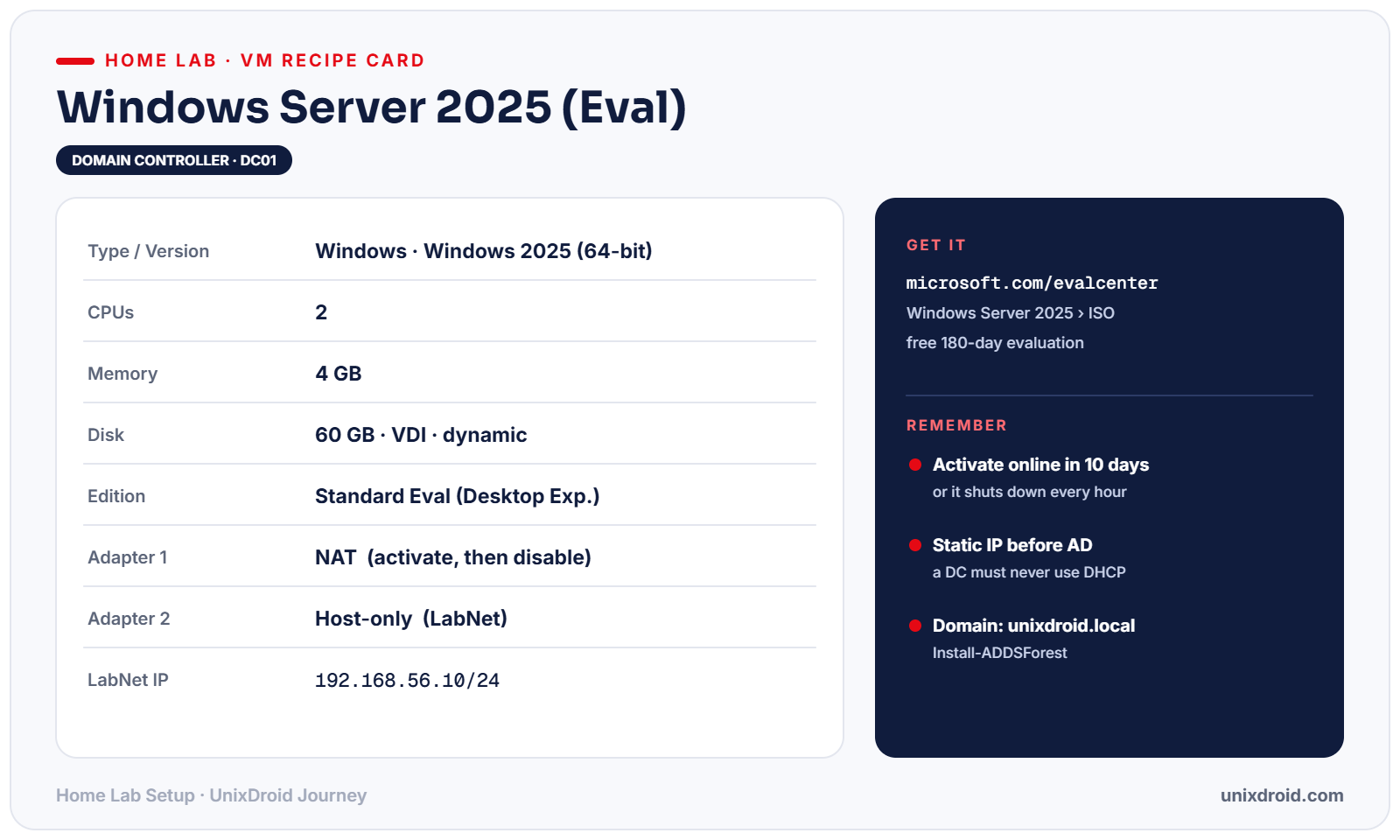
At microsoft.com/evalcenter, choose Windows Server 2025 and download the 64-bit ISO. It's free for 180 days, but it must be activated online within 10 days, or it shuts down every hour. Keep the NAT adapter connected for the first boots so activation happens automatically.
Create the VM
- New → Name DC01, select the ISO, Type Windows, Version Windows 2025 (64-bit). If your VirtualBox doesn't list it, choose Windows 2022 (64-bit) or update VirtualBox.
- Tick Skip Unattended Installation.
- Hardware: 4096 MB RAM, 2 CPUs. Disk: 60 GB.
- Network: Adapter 1 NAT, Adapter 2 Host-only (LabNet).
Install
- Start and press any key to boot from the DVD.
- When asked for the edition, pick Windows Server 2025 Standard Evaluation (Desktop Experience). The options without Desktop Experience are Server Core, which is command line only.
- Install to Disk 0, then set a strong Administrator password. A DC refuses weak ones.
- To log in, press Host + Del (Right Ctrl + Del) to send Ctrl+Alt+Del to the VM.
- Install Guest Additions (Devices → Insert Guest Additions CD image) and reboot.
- Check activation:
slmgr /dlv. If it isn't activated yet, runslmgr /atowhile NAT is connected.
Prepare the server
A domain controller needs a fixed name and a static IP, set before you promote it. Open PowerShell as Administrator:
Rename-Computer -NewName DC01 -RestartAfter the reboot:
Get-NetAdapter                       # LabNet is usually "Ethernet 2"
New-NetIPAddress -InterfaceAlias "Ethernet 2" -IPAddress 192.168.56.10 -PrefixLength 24
Set-DnsClientServerAddress -InterfaceAlias "Ethernet 2" -ServerAddresses 127.0.0.1
Promote it to a domain controller
Install-WindowsFeature AD-Domain-Services -IncludeManagementTools
Install-ADDSForest -DomainName "unixdroid.local" -DomainNetbiosName "UNIXDROID" -InstallDns
It asks for a Safe Mode (DSRM) password. Pick one and write it in your lab notebook. Expect a few yellow warnings, for example about the NAT adapter using DHCP; that's normal in a lab. The server reboots, which takes a while the first time. Log in as UNIXDROID\Administrator.
Once DC01 is activated and updated, untick Cable Connected on Adapter 1 (NAT) in the VM's network settings. A real DC never browses the internet, and a single network keeps AD's DNS clean.
Create lab users
New-ADOrganizationalUnit -Name "Lab Users"
New-ADUser -Name "Rahul Sharma" -SamAccountName rahul -UserPrincipalName rahul@unixdroid.local -Path "OU=Lab Users,DC=unixdroid,DC=local" -AccountPassword (Read-Host -AsSecureString "Password") -Enabled $true
Get-ADUser -Filter * | Select-Object Name, SamAccountName
Create a second user the same way, or try the GUI: Server Manager → Tools → Active Directory Users and Computers.
Join Windows 11 (WS01) to the domain
On WS01, open PowerShell as Administrator. First point its DNS at the DC (this is what makes the join work), then join:
Set-DnsClientServerAddress -InterfaceAlias "Ethernet 2" -ServerAddresses 192.168.56.10
Resolve-DnsName unixdroid.local     # must return 192.168.56.10
Add-Computer -DomainName unixdroid.local -Credential UNIXDROID\Administrator -Restart
After the reboot, click Other user and log in as UNIXDROID\rahul, then run whoami. You should see unixdroid\rahul. Back on DC01, Get-ADComputer -Filter * now lists WS01.
How an attacker spots a DC
From Kali:
nmap -sV -p 53,88,135,389,445,636 192.168.56.10| Port | Service | Why it gives the DC away |
|---|---|---|
| 53 | DNS | AD runs its own DNS |
| 88 | Kerberos | Only domain controllers run Kerberos |
| 389 / 636 | LDAP / LDAPS | The AD directory itself |
| 445 | SMB | File shares, Group Policy (SYSVOL) |
Port 88 plus 389 on the same host almost always means "domain controller". You'll attack these services in the Ethical Hacking path, so take a snapshot of DC01 and WS01 named domain-ready now.
Troubleshooting
| Problem | Fix |
|---|---|
| "An Active Directory Domain Controller could not be contacted" | WS01's DNS isn't pointing at 192.168.56.10, or the NAT DNS answers first. Untick NAT's Cable Connected on WS01 and retry |
| Promotion fails on the Administrator password | Set a complex local Administrator password first |
| Server shuts down every hour | Not activated. Connect NAT and run slmgr /ato |
| Can't log in as a domain user | Use UNIXDROID\username on the Other user screen |