
Kali Linux is the attacker machine you'll use for the rest of your journey: Nmap, Burp Suite, Metasploit, Wireshark, Hydra and hundreds more tools, ready to go. It's a rolling release: install it once, update it often, and it stays current.
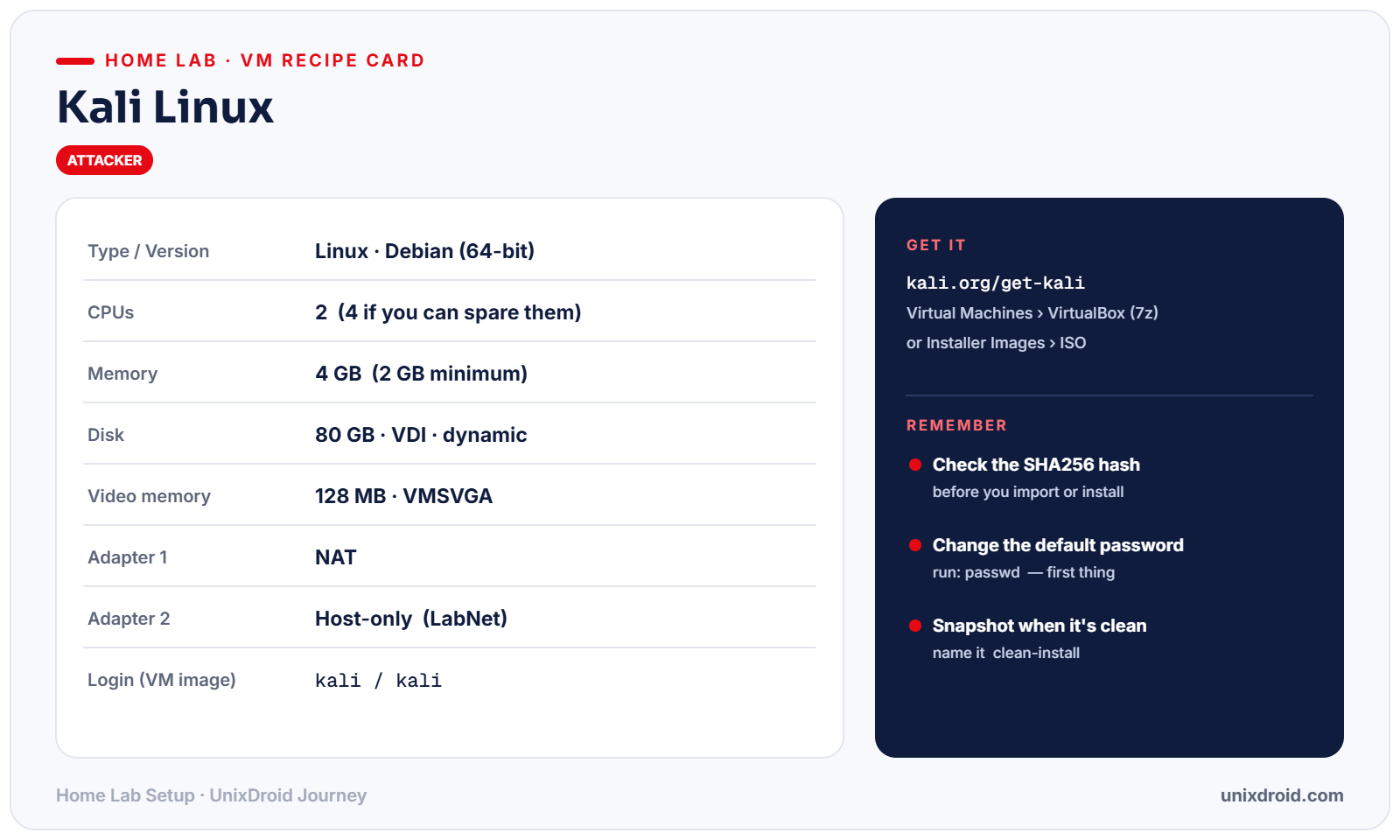
Two ways to install it
| Option A: Pre-built VM image | Option B: Installer ISO | |
|---|---|---|
| Time | About 5 minutes | 20–30 minutes |
| Login | kali / kali (change it!) | Your own username and password |
| Guest Additions | Already included | Installed with one command |
| You learn | VirtualBox basics | How a Linux installer and partitioning work |
Short on time? Choose A. Doing this to learn? Choose B at least once.
Download and verify
Go to kali.org/get-kali:
- Option A: Virtual Machines → VirtualBox (a .7z file)
- Option B: Installer Images → Recommended → Installer (an .iso file)
Always check the download's SHA256 hash against the one shown on the download page. It proves the file wasn't corrupted or tampered with, which is a security habit worth having on day one.
# Windows PowerShell (run in your Downloads folder)
Get-FileHash .\kali-linux-*-virtualbox-amd64.7z -Algorithm SHA256
# Linux / macOS
sha256sum kali-linux-*-virtualbox-amd64.7zOption A: Import the pre-built VM
- Extract the .7z with 7-Zip (Windows) or
7z x file.7z(Linux). You get a folder with a .vbox file and a .vdi disk. Put that folder inside your VirtualBox machine folder. - In VirtualBox, choose Machine → Add and select the .vbox file.
- Open Settings. Under System, set Base Memory 4096 MB and Processors 2. Under Network, set Adapter 1 = NAT and Adapter 2 = Host-only (LabNet).
- Click Start and log in with kali / kali.
- Change the password straight away:
passwdOption B: Install from the ISO
- Click New. Name it Kali, choose your Kali ISO, and set Type Linux, Version Debian (64-bit) (VirtualBox often fills this in from the file name). Tick Skip Unattended Installation so you drive the installer yourself.
- Hardware: 4096 MB RAM and 2 CPUs. Leave EFI unticked.
- Hard disk: 80 GB, VDI, Pre-allocate Full Size unticked. It only grows as you use it.
- Before starting, open Settings. Under Display, set Video Memory 128 MB and Graphics Controller VMSVGA. Under Network, set Adapter 1 NAT and Adapter 2 Host-only (LabNet).
- Start the VM and choose Graphical install.
| Installer screen | What to choose |
|---|---|
| Language, location, keyboard | Your own (e.g. English · India · American English) |
| Hostname | kali |
| Domain name | Leave blank |
| Full name, username, password | Your own: a non-root user with sudo |
| Partitioning | Guided – use entire disk → the 80 GB VBOX disk → All files in one partition → Finish → Yes |
| Software selection | Keep the defaults (Xfce desktop + default tools) |
| GRUB boot loader | Yes, install to /dev/sda |
"Use entire disk" only wipes the virtual 80 GB disk you just created. Your real PC is never touched.
When it finishes, the VM reboots into Kali. If it boots back into the installer, go to Devices → Optical Drives and remove the ISO.
First boot checklist (both options)
sudo apt update && sudo apt full-upgrade -y   # bring every package up to date
sudo reboot
If the screen doesn't resize with the window or copy-paste doesn't work, install the VirtualBox guest tools and reboot:
sudo apt install -y virtualbox-guest-x11Then set Devices → Shared Clipboard → Bidirectional.
Connect to LabNet
ip -br aYou should see eth0 with 10.0.2.15 (NAT) and eth1 with a 192.168.56.1xx address (LabNet). If eth1 has no address:
sudo nmcli device connect eth1
ping -c 3 192.168.56.1
Take your first snapshot
Power the VM off, then choose Machine → Take Snapshot (or open the Snapshots view) and name it clean-install. Whatever you break later, you're one click from a working Kali.
Troubleshooting
| Problem | Fix |
|---|---|
| Black screen after login | Settings → Display: VMSVGA, 128 MB, 3D acceleration off |
| Everything is very slow | Green turtle icon? Revisit the Hyper-V step in lesson 2. Give it 2+ CPUs |
| "Could not get lock /var/lib/dpkg/lock" | Automatic updates are running. Wait a minute and try again |
| Wrong keyboard layout | sudo dpkg-reconfigure keyboard-configuration |
| Clipboard not working | Bidirectional clipboard + virtualbox-guest-x11 + reboot |