
When you run your first Nmap scan, the result is a list of numbers: 22, 80, 443, 3306. To a beginner they look random. To an attacker or a defender, each one says something about the machine: what it runs, how old it might be, and where it could be weak.
This guide explains ports from zero. You don't need any networking background.
What problem do ports solve?
A computer on a network has one IP address. But it might be running a website, an SSH server and a database at the same time. When a packet arrives, how does the computer know which program it's meant for?
That's the job of the port number.
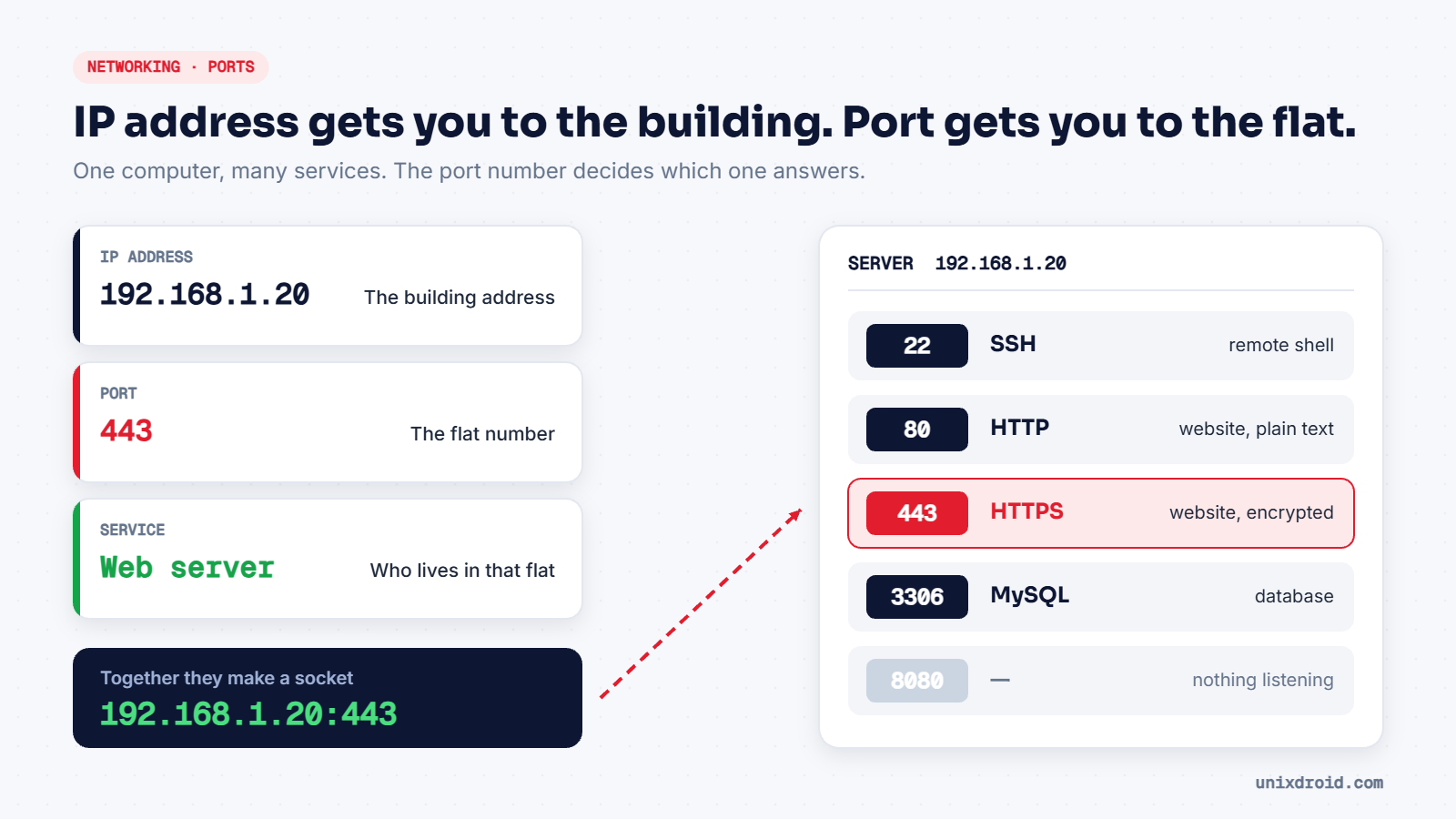
Think of a housing society:
- The IP address is the building's address. It gets the packet to the right machine.
- The port is the flat number. It gets the packet to the right program on that machine.
- The service is whoever lives in that flat, such as a web server or an SSH server.
When you open a secure website, your browser connects to the server's IP address on port 443. Written together it looks like 192.168.1.20:443. This IP-plus-port pair is called a socket.
Port numbers run from 0 to 65535, and normally only one program can listen on a given port at a time.
Your side of the connection has a port too
People often miss this. When your browser connects to port 443, your own computer also picks a port for the reply to come back to, usually a high random number like 51734. Run this on Linux:
ss -tnYou'll see your open connections: a random high port on your side, and a well-known port like 443 on the other side. On Windows, netstat -an does the same job.
The three port ranges
The 65,535 ports aren't all equal. IANA, the organisation that manages internet numbers, splits them into three groups:
| Range | Name | What lives there |
|---|---|---|
| 0 – 1023 | Well-known | Core services: web, SSH, email, DNS |
| 1024 – 49151 | Registered | Specific applications, like MySQL (3306) or RDP (3389) |
| 49152 – 65535 | Dynamic | Temporary ports your device picks for outgoing connections |
By default on Linux, a normal user can't start a program on a well-known port. You need root, which is why you'll often type sudo before starting a service there.
TCP and UDP: two ways to send data
A port number on its own isn't the full story. Every port exists twice: once for TCP and once for UDP. Port 53 on TCP and port 53 on UDP are two separate doors.
TCP: the careful one
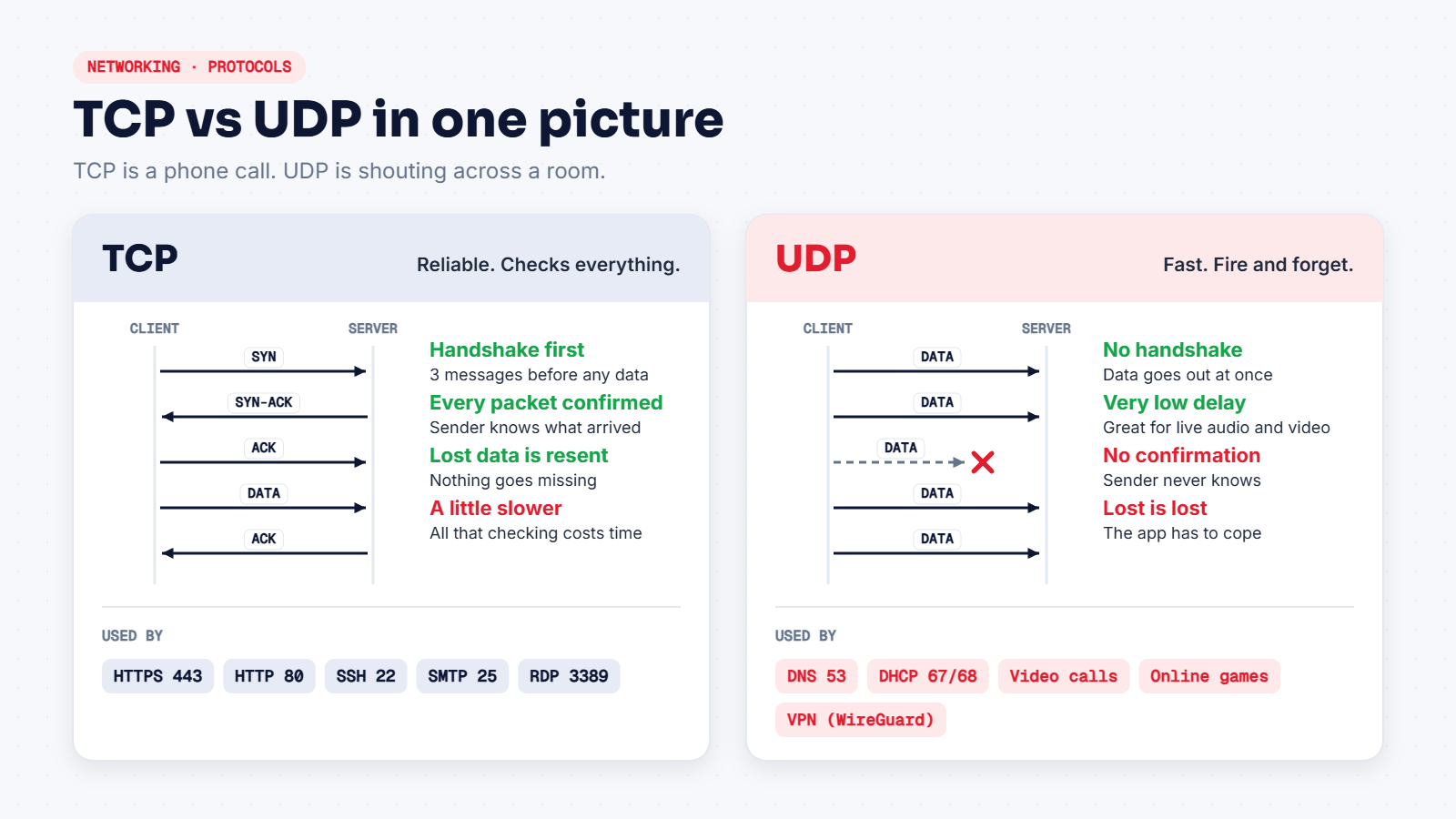
TCP (Transmission Control Protocol) sets up a connection before sending anything. This setup is the famous three-way handshake:
- Your computer sends SYN: "Can we talk?"
- The server replies SYN-ACK: "Yes, I'm listening."
- Your computer sends ACK: "Great, let's start."
After that, every piece of data is numbered and confirmed. If something gets lost, it's sent again, so data arrives complete and in the right order. Websites, SSH, email and file transfers all use TCP, because one missing piece would break them.
UDP: the fast one
UDP (User Datagram Protocol) skips all of that. No handshake, no confirmation, no resending. It simply sends the packets and moves on.
That sounds worse, but it's ideal when speed matters more than perfection. On a video call, a packet that went missing half a second ago is useless anyway, so it's better to keep going. DNS lookups, online games, video calls and many VPNs use UDP for exactly this reason.
Easy way to remember it: TCP is a phone call, where you connect first and confirm you heard each other. UDP is shouting across a room. Fast, but you never know if they heard.
Why this matters for hacking
The TCP handshake is what makes port scanning work. When Nmap sends a SYN to a port:
- a SYN-ACK reply means the port is open,
- an RST reply means it's closed,
- no reply usually means a firewall is filtering it.
UDP scanning (-sU in Nmap) is much slower and less certain, because many UDP services don't reply at all. That's why beginners scan TCP first, and why UDP services are sometimes missed in real security tests. You can watch all of this in our free lesson, Your first Nmap scan.
The 12 ports you'll see again and again
You don't need to memorise thousands of ports. These twelve cover most of what you'll meet in labs and beginner CTFs.
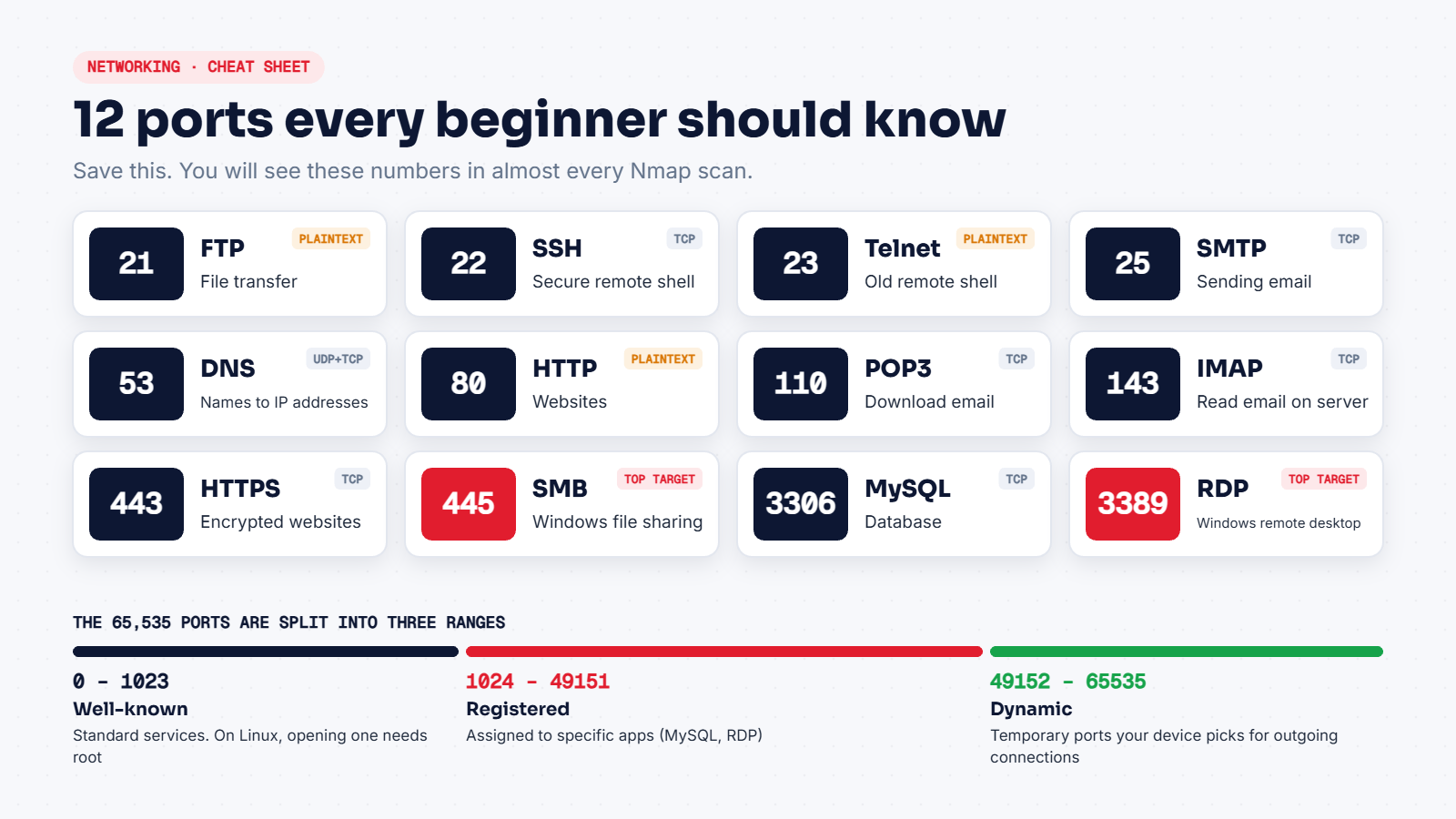
A few deserve extra attention:
- 21 (FTP), 23 (Telnet) and 80 (HTTP) send data in plain text, sometimes including passwords. Anyone capturing traffic on the same network with Wireshark can read it. Finding Telnet open today is usually worth reporting.
- 22 (SSH) is the secure replacement for Telnet. It gets hammered by password-guessing bots, so key-based login is the safer setup.
- 53 (DNS) mostly uses UDP, but switches to TCP for large replies and zone transfers. A DNS server that allows zone transfers to anyone can leak a company's whole list of hostnames.
- 110 (POP3) and 143 (IMAP) are older mail ports that are plain text unless TLS is switched on. Their encrypted versions normally run on 995 and 993.
- 445 (SMB) is Windows file sharing. The WannaCry ransomware outbreak in 2017 spread through a weakness in SMB, which is why 445 should never be open to the internet.
- 3389 (RDP) is Windows Remote Desktop. RDP exposed to the internet is a favourite way in for ransomware gangs.
- 3306 (MySQL) is a database. It should almost never be reachable from outside. If you find it open in a test, check whether it accepts weak or default logins.
A port number is a hint, not a fact
Here's a mistake many beginners make: they see port 80 open and write "web server" in their notes. Port numbers are conventions, not rules. An admin can run SSH on port 2222, a web panel on 8443, or something completely different on port 80.
So you confirm with version detection:
sudo nmap -sV -p 22,80,443 192.168.56.102The -sV flag makes Nmap talk to each open port and identify the real software and version, such as OpenSSH 4.7p1 or Apache httpd 2.2.8. The version is what you look up in vulnerability databases, not the port number.
Try it yourself, safely
Only scan machines you own or have written permission to test. Your own computer and lab are perfect for this.
1. See which ports your Linux machine is listening on:
sudo ss -tulpn-t is TCP, -u is UDP, -l shows listening ports only, -p shows the program, and -n shows numbers instead of names.
2. Open a port yourself and watch it appear:
python3 -m http.server 8000In a second terminal, run ss -tln. Port 8000 is now in the list. Press Ctrl+C in the first terminal and run the command again: it's gone. You just watched a port open and close.
3. Scan your lab. If you've built the lab from our Journey, scan your Metasploitable VM and match each open port to the cheat sheet above.
Quick recap
- The IP address finds the machine. The port finds the program.
- Ports run from 0 to 65535, split into well-known, registered and dynamic ranges.
- TCP is reliable and starts with a handshake. UDP is fast and doesn't check.
- SYN-ACK, RST or silence is how a scanner tells open, closed and filtered apart.
- Plain-text ports (21, 23, 80) leak data. Exposed 445 and 3389 are serious risks.
- Always confirm the service with
-sV. The number alone can lie.
Want to go step by step? Start the free Ethical Hacking path on UnixDroid Journey.